
Features
Global UI Features
- Global Status Bar: Top bar displays a summary of new events across workspaces (e.g.,
● (2) unread DMs · (1) activity notification). - Workspace Navigation: Quick switching using
1to4keys. - Help Menu: Accessible anywhere via
?to show a full-screen cheat sheet. - Mobile Mode: Responsive single-panel display for narrow terminals. Auto-enables below 120 columns (toggle with
Ctrl+B). The panel uses dynamic width (terminal width - 2) and full height, so it adapts as you resize the window — not a fixed size. Top bar shows only the active workspace plus presence symbol (inactive workspace numbers hidden), and popups render over the panel. UseTabto switch between list and content,←/→for filter tabs. - Startup Token Validation: On launch, all 5 active tokens (graph, web, notif, edu, fabric) are checked in parallel via lightweight health requests. Expired tokens are flagged immediately so you know which need renewal. Fabric token is checked specially (API returns 403 when expired).
- Per-Token Auto-Renewal: When a token expires, the TUI dispatches
lazyteams-auth --renew <type>in the background. The top bar shows⟳ Renewing TEAMS_WEB_TOKEN...with the specific token name instead of a generic message. - Update Check: On startup the TUI queries the latest GitHub release; if a newer version exists, the footer displays
New version X availableexclusively for 60 seconds before contextual hints return. - Self-Healing Startup: Automatically retries initial data fetches (like user profile and team lists) if they fail silently due to transient network errors or race conditions during token renewal.
Teams & Channels (Workspace 1)
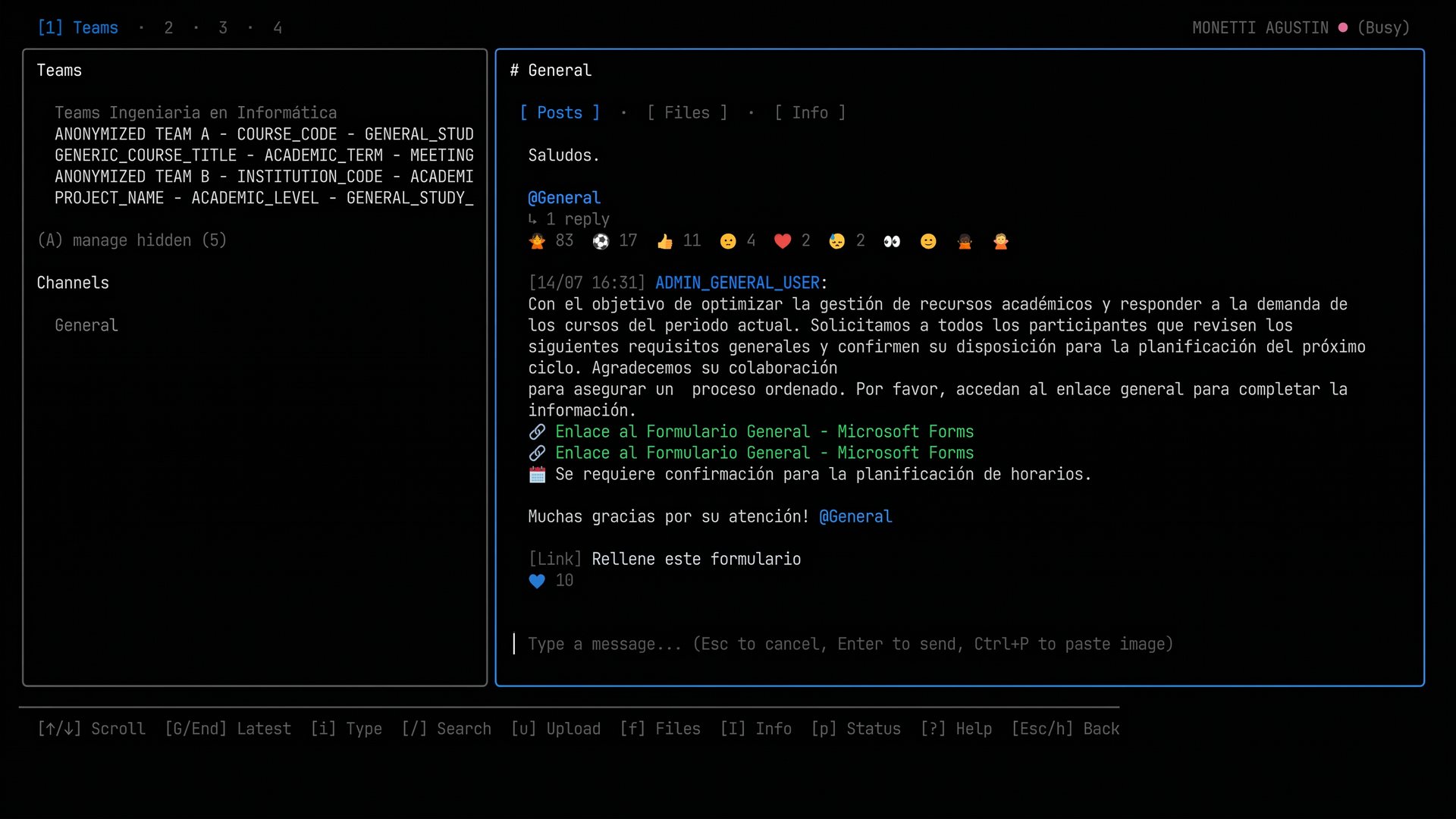
- List joined teams (
/me/joinedTeams) - List channels per team with pagination (
@odata.nextLink) - Anchored Teams header + sliding window for channels: the Teams list stays pinned at the top; long channel lists use an independent viewport with overflow indicators (
▲ X more.../▼ X more...). Left-panel top alignment is consistent across all workspaces (no redundantChatsheader in DMs). - Channel selection loads messages via ChatSvc API
- Team Management: Create (
N), delete (D), view members (M), view info (I), or copy link (L) for teams. In the members view, add (a) or remove (x) members. Toggle visibility (H) or view hidden teams (A). - Channel Management: Create (
c), delete (X), view info (I), toggle visibility (H) or view hidden channels (A) for channels. Add (a), remove (x), or change role (r) of members in Private Channels. - Internal APIs: Member management for private channels bypasses public API limitations by using internal Microsoft Teams Fabric APIs.
Direct Messages / Chats (Workspace 2)
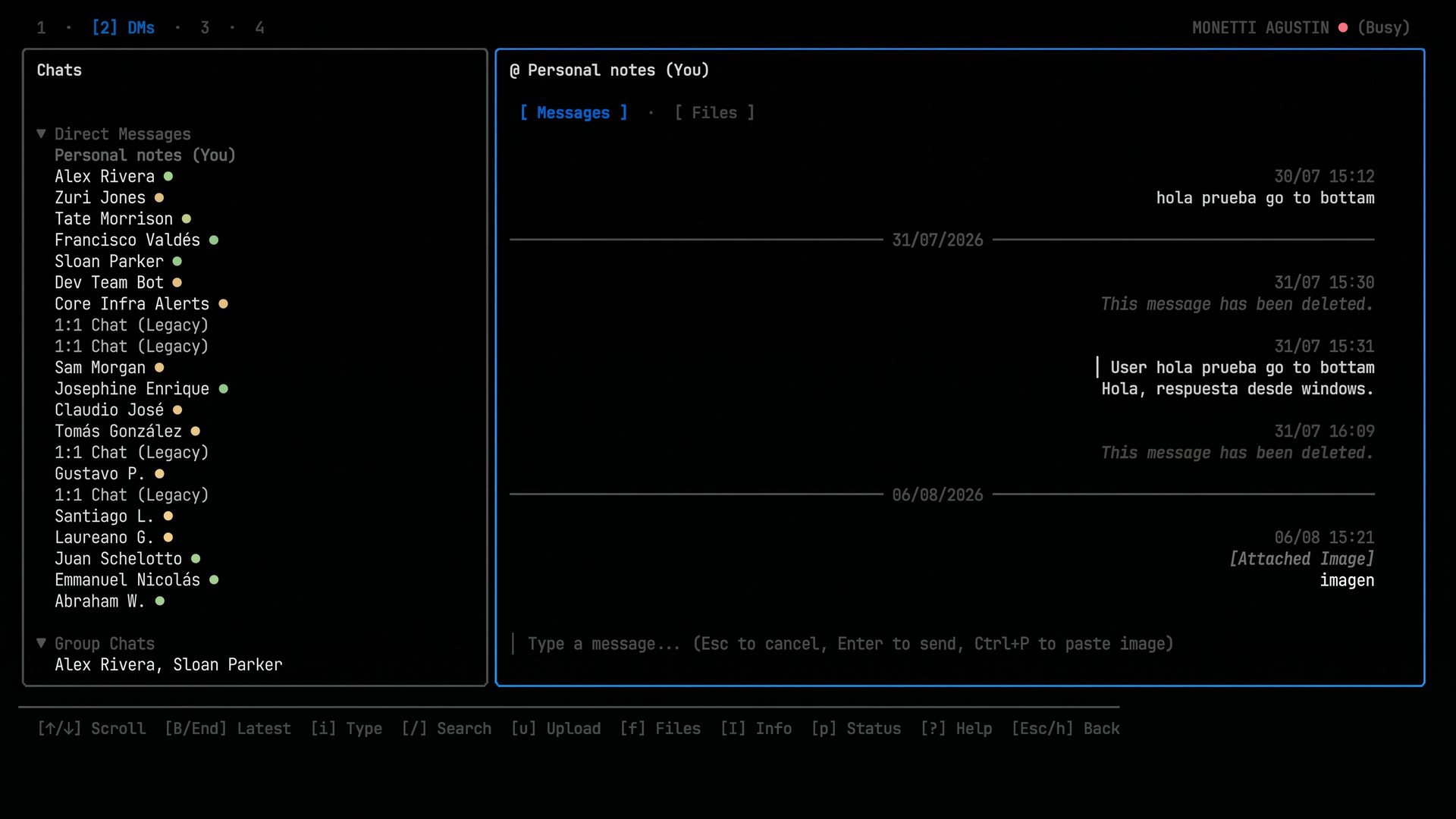
- List chats categorized into Direct Messages and Group Chats (collapsible sections).
- New DM search: Press
nto search for organizational users by name or by exact email for external/federated users. External users are labeled with(External). External search retries withTEAMS_SPACES_TOKENifTEAMS_WEB_TOKENfails, using thecdlworkerclient type. - Smart name resolution: group topic, member names (excluding current user), last message preview
- Auto-discovery of personal chat ("Personal notes"): Prioritized at the very top of the list.
- Unread indicators (
●cyan) for chats with new messages, mapped accurately via Teams consumption horizons. - Dynamic sorting: Chats are sorted by unread status first, then by last activity date (most recent first). Opening a chat clears its unread badge and drops it down.
- Default cursor position: When switching to Workspace 2, cursor lands on the DM section header instead of the first chat.
- Polling every 3 seconds for active chats
Messages
- Read messages: Infinite scroll pagination (loads older messages seamlessly as you scroll up). Viewport auto-scrolls to bottom after sending, switching chats, or creating new DMs.
- Send messages (RichText/Html, 4000 character limit)
- Inline Image Paste: Press
Ctrl+Pin write mode to paste an image from the clipboard. The image is uploaded to Microsoft's AMS infrastructure and sent as an inline rich-text image. While staging, a[N image(s) ready]badge appears above the input. Status messages ("Image staged", errors) show in the top bar. - Mentions: Type
@to open a real-time autocomplete popup to mention users. - Local Search: press
/to live-filter chat messages by text. - Cursor Mode & Threads: press
cto navigate messages individually. PressEnteron a channel message to open a dedicated Thread View with inline replies (r). PressEnteron a DM message to reply with quote (inserts a Teams-compatible HTML blockquote). A reply bar↩ Replying to Name: ...appears above the input;Escclears it. - Open Link in Browser: in cursor mode, press
oto open the first resolvable link in a message (link attachment → Markdown link → plain URL → file attachment fallback). - Edit & Delete: in cursor mode, press
Eto edit orDelto delete your own messages. - Reactions: in cursor mode, press
eto add or remove emoji reactions via an interactive picker. Messages auto-reload after adding or removing a reaction. - Attachments & Images: Chat messages with inline images or file attachments display
[Attached Image]/[Attached File]indicators. In cursor mode, pressvto download and open attachments locally (AMS images use direct authenticated download). - Download status: Attachment download progress and results are shown in the right panel / info view.
- Native Markdown Rendering: Converts Microsoft Teams rich HTML (headings, bold, lists, code blocks) into native Markdown for elegant terminal display using Glamour.
- Security Hardening: Strict URL host validation prevents token exfiltration (only Microsoft CDNs and API endpoints are trusted for authenticated downloads/links). All rendered text (senders, messages, attachments, channels) is aggressively sanitized to strip C0/C1 control bytes, blocking terminal escape sequence injection attacks.
- Clickable links using ANSI OSC 8 (works in Kitty, Alacritty, GNOME Terminal). Links are strictly validated and stripped of escape sequences to prevent terminal injection.
- Auto-refresh of messages every 3 seconds
- Supported message types: Text, RichText/Html, Event/Call, MemberAdded/Removed
Files / Drive Browser
- Browse channel files via Graph API (supports both standard team drives and isolated private channel SharePoint drives)
- Recursive folder navigation with back stack — auto-refresh keeps the breadcrumb in sync (refreshes the current subfolder when one is open, avoids stale root overwrite)
- Metadata (toggle with
t): Hidden by default; presstin the Files view (Teams workspace, right panel) to show02 Jan 2006 15:04 · Author. Time includes hour/minute. Preference is persisted inprefs.json(showFileInfo) and auto-hidden when entering mobile mode (Ctrl+Borwidth < 120). - Folder Management: Press
Fto create subfolders. - File Deletion: Press
Delto delete files or folders. - Full remote items support (SharePoint shortcuts, e.g. "Class Materials")
- Auto-discovery of "Class Materials" folder in education tenants
- Icons by extension:
[PDF],[PPT],[DOC],[XLS],[VID],[ZIP],[DIR],[LINK],[FILE] - Multi-selection with Space, download with confirmation
[y]/[n](includes path traversal protection for safe downloads) - Customizable download directory — edit with
ein the download popup using the directory picker, persisted inprefs.json - File Upload — press
uto upload files to the current subfolder via interactive directory picker (supports >4MB chunked sessions) - File preview — press
vto preview files: text files show with line numbers, non-text files (docx, xlsx, pptx, etc.) open in browser via Office Online viewer (restricted to safehttp/httpsschemas) - Fallback: opens in system browser (
xdg-open)
Notifications / Activity (Workspace 3)
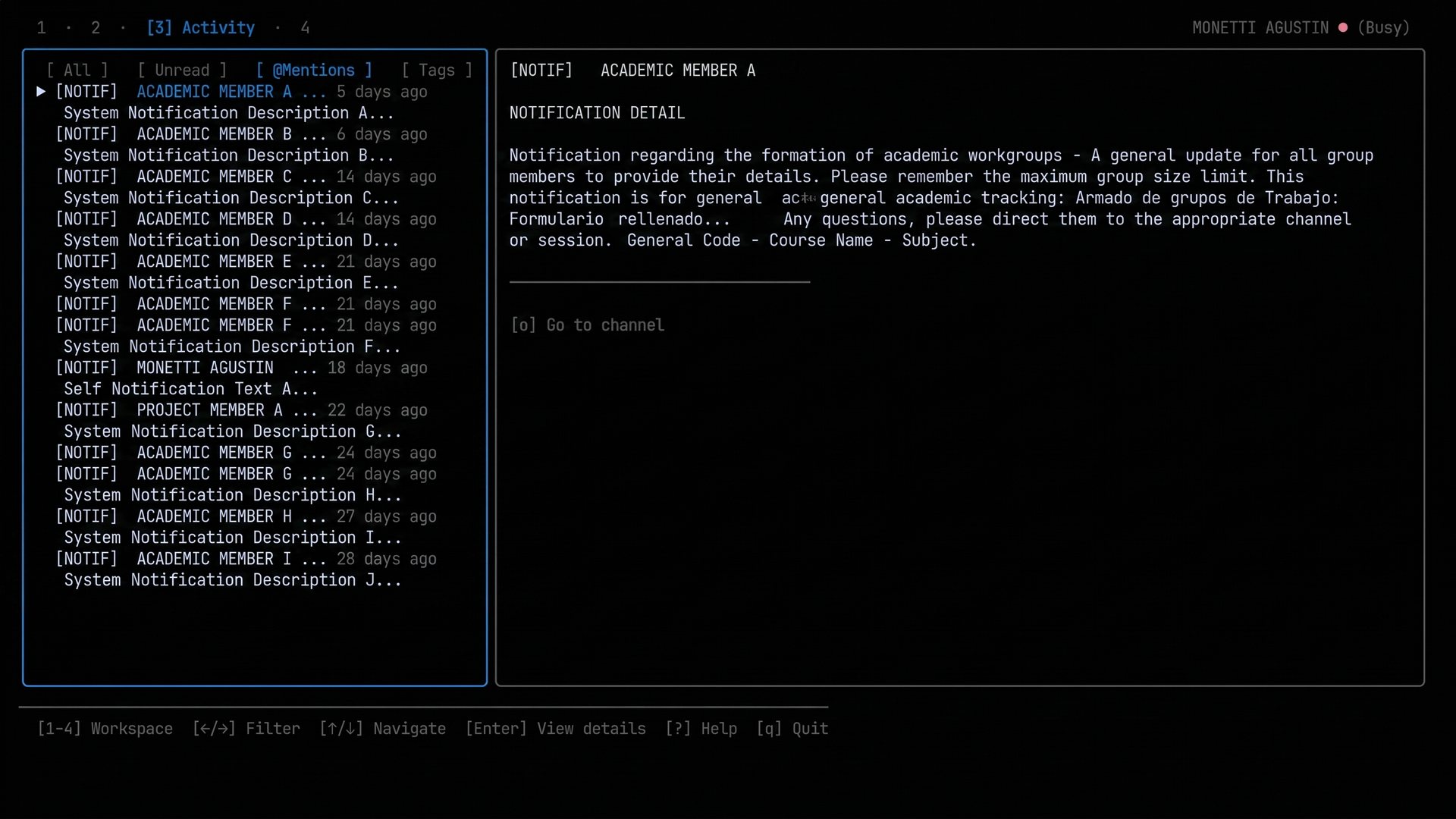
- Notification fetch via ChatSvc
48:notifications - Auto-refresh: polls for new notifications every 3 seconds
- Unread indicator — yellow dot
●on[3] Activityin the footer when there are unread notifications - Mark as read — press
Enteron a notification to mark it as read (clears the red dot) - Tagged types:
[ASSIGN],[DUE],[@],[REPLY],[MSG],[NOTIF],[like] - Relative timestamps: "now", "N min ago", "N h ago", "N days ago"
- Filters: All / Unread / @Mentions / Tags (tagged mentions) — assignment-based filters (Upcoming/Overdue) were replaced with activity-type filters
- Fallback hint when a notification preview is empty
- Navigate to source channel from notification detail with
[o]
Education Assignments (Workspace 4)
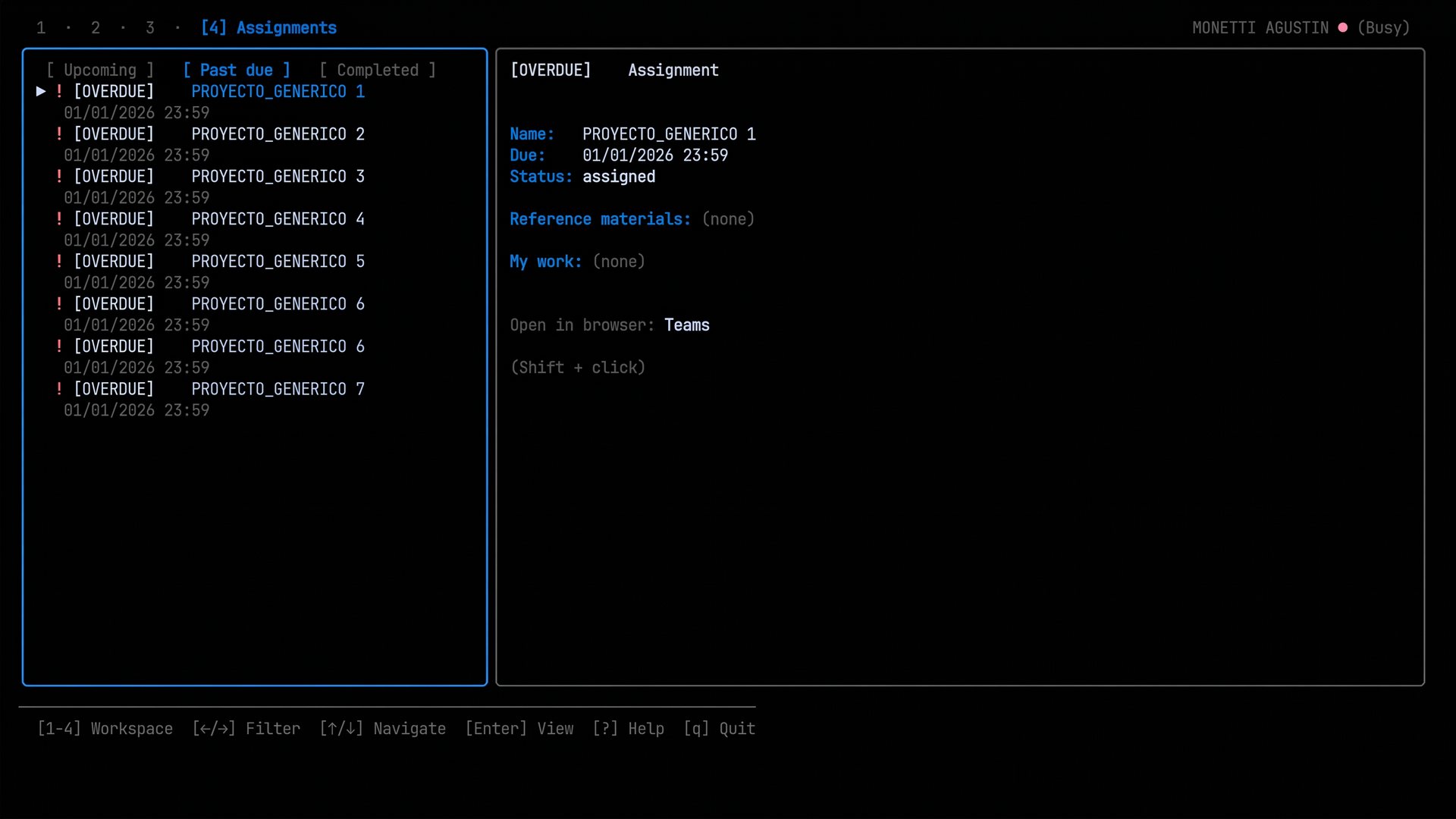
- Fully functional workspace via internal EDU endpoints (bypassing public API restrictions).
- Rich rendering: Views assignment instructions in native Markdown, due dates, turn-in dates, and submission status.
- Categorization: Filters assignments by Upcoming, Past due, and Completed tabs.
- Files integration: Displays 'Reference materials' (from professors) and 'My work' (student submissions).
- Navigation: Use
j/kto navigate files inside an assignment. - File operations:
Enteropens the file via Office Online viewer,odownloads it locally. - Submission workflow: Upload files (
u), submit (s), undo submit (S), and remove resources (Del).
⚠️ Assignments — Upload & Submit: Untested in production. The upload (
u) and submit (s) workflow was implemented and tested against local mocks. It requires testing with a real pending assignment before considering the feature stable. Endpoints involved:UploadFileToSubmissionFolder,RegisterAssignmentResource,SubmitAssignment.
Presence
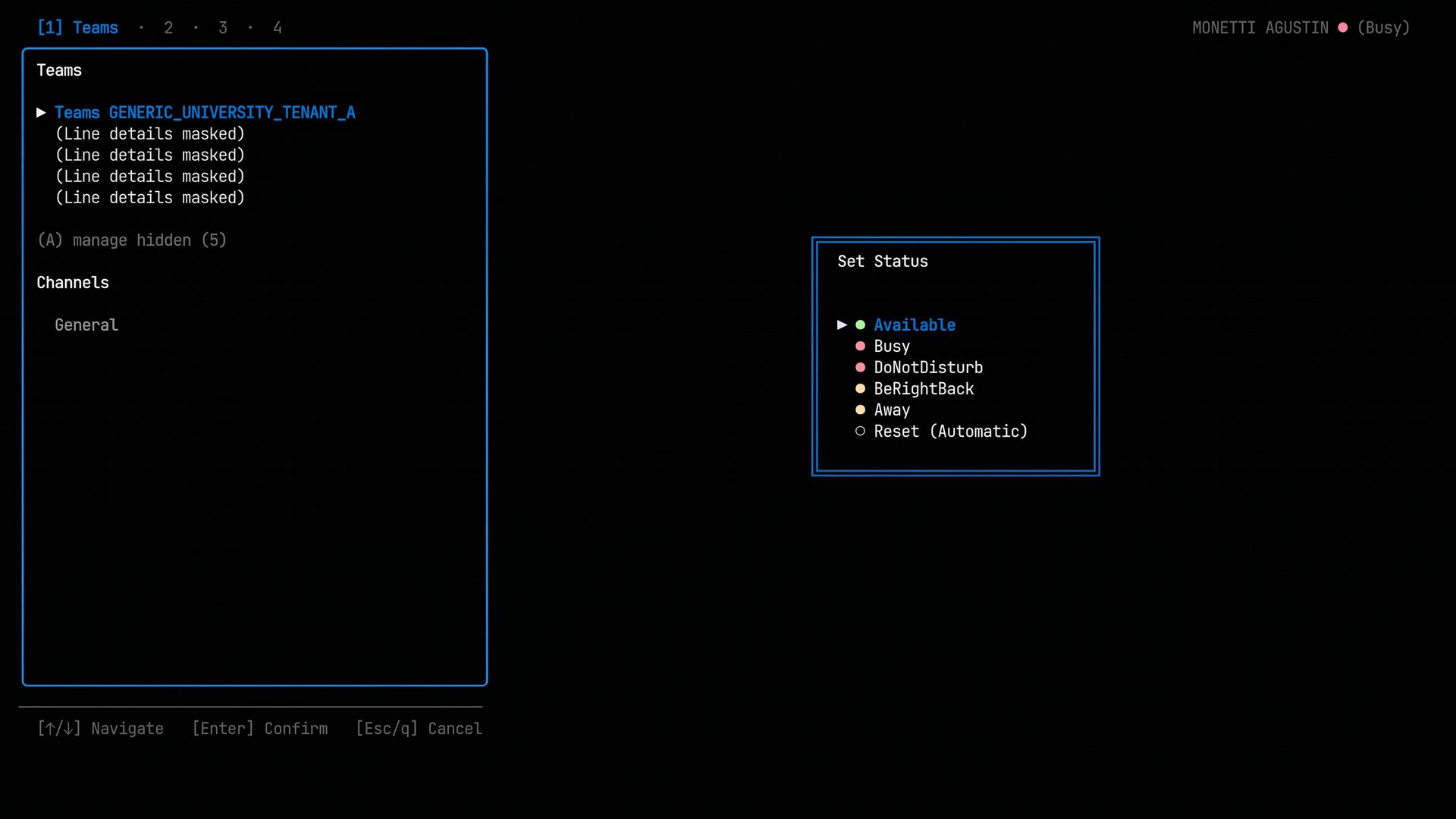
- Read contact presence (Graph API, concurrent with goroutines)
- Change your own status with
p: Available, Busy, DoNotDisturb, BeRightBack, Away, Reset (Automatic) - Auto-refresh every 60 seconds
- Color indicators: 🟢 Available, 🔴 Busy/DoNotDisturb, 🟡 Away/BeRightBack, ⚫ Offline
Note on Presence Delays: When a user's presence changes in Microsoft Graph, it may take a few minutes to update across clients because Teams uses poll mode internally. This explains why your colleagues' presence updates might seem delayed. However, when changing your own status, LazyTeams uses optimistic UI to reflect the change instantly and blocks the background refresh from reverting it to stale data while Microsoft's servers catch up.
🔑 All keyboard shortcuts are documented on the Keyboard Shortcuts page. You can also press
?inside the TUI to open the built-in cheat sheet.