
Getting Started
LazyTeams is a fast, keyboard-driven Microsoft Teams client that runs entirely in the terminal. No Electron, no browser — just a single static Go binary.
Quick Links
Requirements
- OS: Linux, macOS, or Windows
- Go: 1.26.6+ (to compile)
- Microsoft Teams account: university or enterprise - does not work on personal accounts
- Firefox: required by the auth helper (Playwright)
Installation
Clone, build the TUI and the auth helper, and put both in your PATH:
git clone https://github.com/agmonetti/lazyteams.git
cd lazyteams
go build -o lazyteams .
go build -o lazyteams-auth ./cmd/auth-helper/
mkdir -p ~/.local/bin
mv lazyteams lazyteams-auth ~/.local/bin/
Ensure ~/.local/bin is in your $PATH.
Note: Binaries built directly with
go buildreportdevas their version. Build throughmake build VERSION=v1.2.3ormake dist VERSION=v1.2.3to embed a version (shown by./lazyteams --version).
First-time setup
1. Grant Microsoft Graph permissions (one-time)
Before running the auth helper for the first time, grant permissions manually via Graph Explorer:
- Sign in with your Microsoft/organizational account.
- Go to the Modify permissions tab.
- Enable each permission below.
| Permission | Purpose |
|---|---|
User.Read | Read your profile |
User.Read.All | Search users for DMs, @mentions, member management |
Team.ReadBasic.All | List your teams |
Channel.ReadBasic.All | List channels |
Chat.ReadBasic | Read chat names and members |
GroupMember.Read.All | Read team members |
Team.Create | (Optional) Create teams (N) |
Presence.Read.All | Read presence status |
Presence.ReadWrite | Set your presence |
Files.ReadWrite.All | Access and upload files |
Sites.Read.All | Access SharePoint sites (Class Materials, etc.) |
Note: Some organizations (e.g. universities) restrict which permissions users can consent to. If
Chat.ReadBasicshows "Need admin approval", contact your IT administrator.
2. Capture tokens
lazyteams-authA browser window opens for login and captures the required tokens automatically (~90 seconds the first time). On later runs it goes headless and renews expired tokens on its own.
Auth process demo
Watch the full first-time auth flow — browser login, automatic token capture, and the saved session:
A signed-in session looks like this:
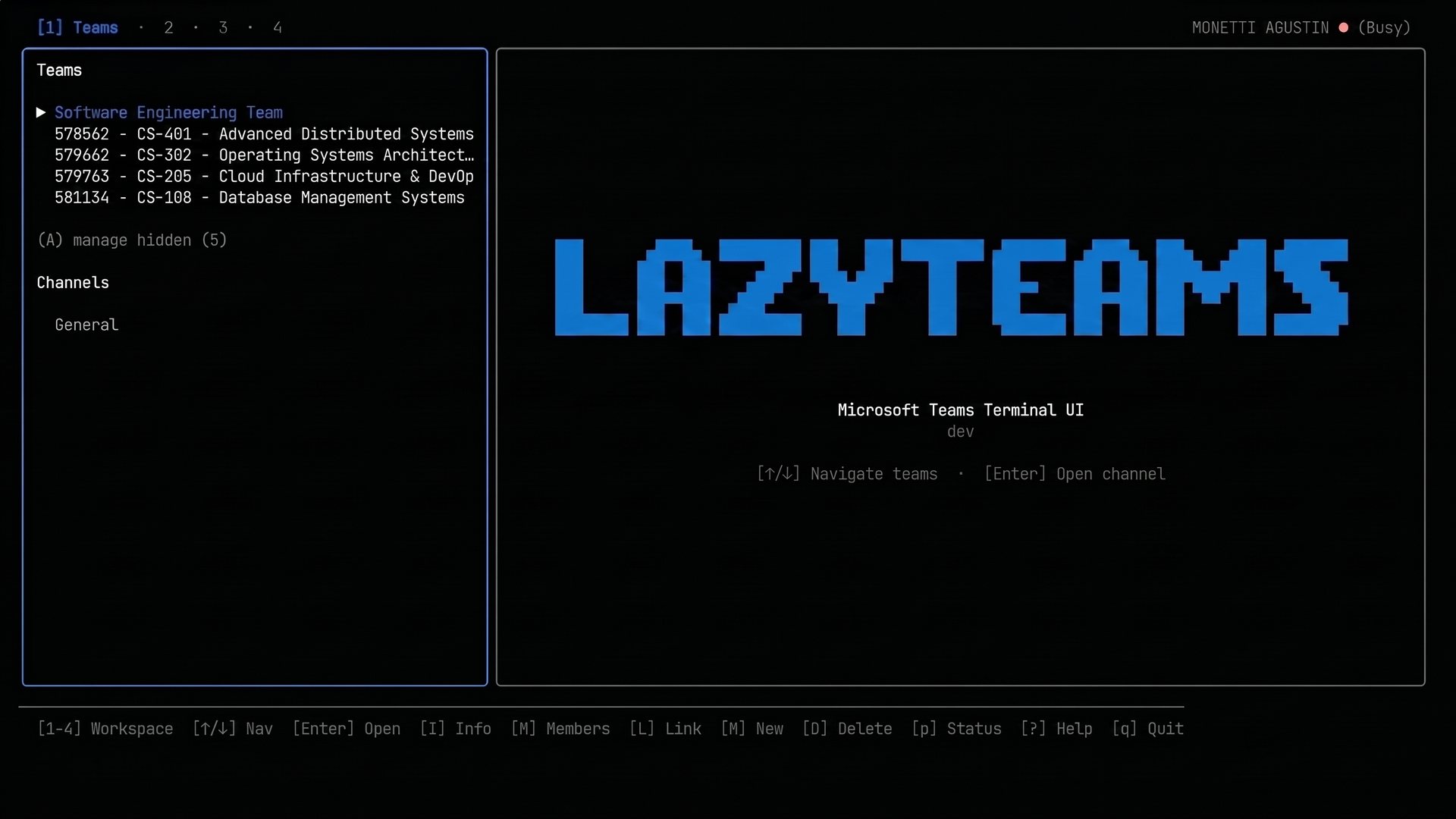
3. Run
lazyteamsIf you see an error like:
HTTP 403: Missing scope permissions on Chat. API requires one of 'Chat.ReadBasic, Chat.Read, Chat.ReadWrite're-check the permissions in step 1 and make sure Chat.ReadBasic has been consented.
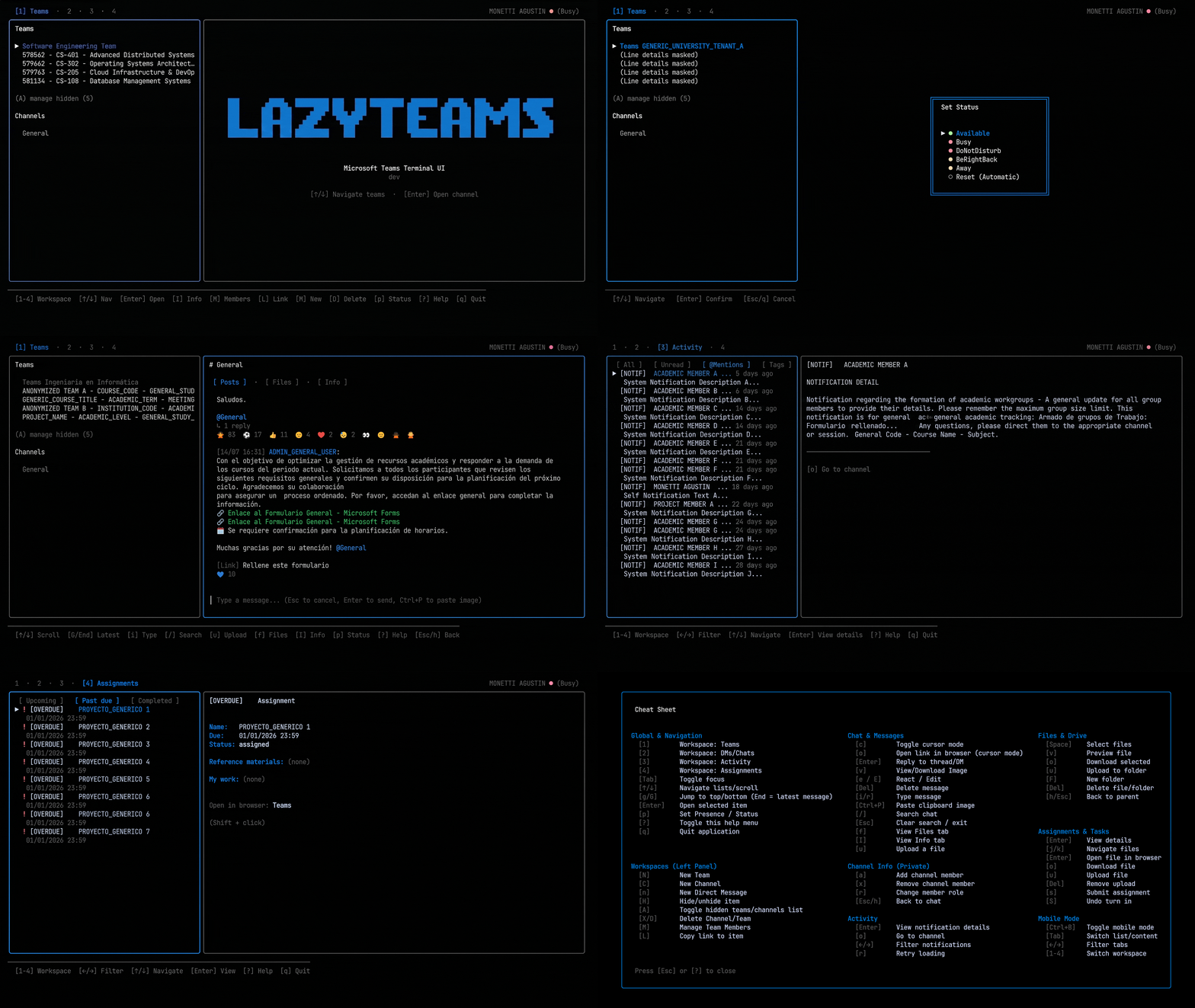
See it in action
CLI reference
lazyteams
| Command | Description |
|---|---|
lazyteams | Start the TUI |
lazyteams --debug | Start the TUI with diagnostic mode enabled |
lazyteams --update | Check for and install the latest release (TUI + auth helper) |
lazyteams --version / -v | Show the build version |
lazyteams --help / -h | Show usage, auth commands, and config paths |
lazyteams-auth
| Command | Description |
|---|---|
lazyteams-auth | Full token capture (first run) |
lazyteams-auth --renew graph | Renew MS Graph token (opens browser) |
lazyteams-auth --renew fabric | Renew Fabric token (opens browser) |
lazyteams-auth --renew web | Renew Teams Web token (headless) |
lazyteams-auth --renew edu | Renew EDU/Assignments token (headless) |
lazyteams-auth --renew notif | Renew Notifications token (headless) |
lazyteams-auth --show | Force browser visible |
lazyteams-auth --headless | Force headless mode |
lazyteams-auth --debug | Enable detailed diagnostic output (written to auth-helper.log by default) |
lazyteams-auth --version / -v | Show the build version |
lazyteams-auth --clear-session | Delete browser session (forces re-login) |
lazyteams-auth --clear-tokens | Delete saved tokens |
--clear-session and --clear-tokens can be combined: lazyteams-auth --clear-session --clear-tokens resets the entire installation.
Next steps
- Explore what the app can do: Features
- Learn every keybinding: Keyboard Shortcuts
- Understand tokens, renewal, and persisted files: Configuration
- Something not working? Check Troubleshooting
- Have a question first? See the FAQ